
The Whole Customer on One Screen: Meet the New iPresso Contacts Manager

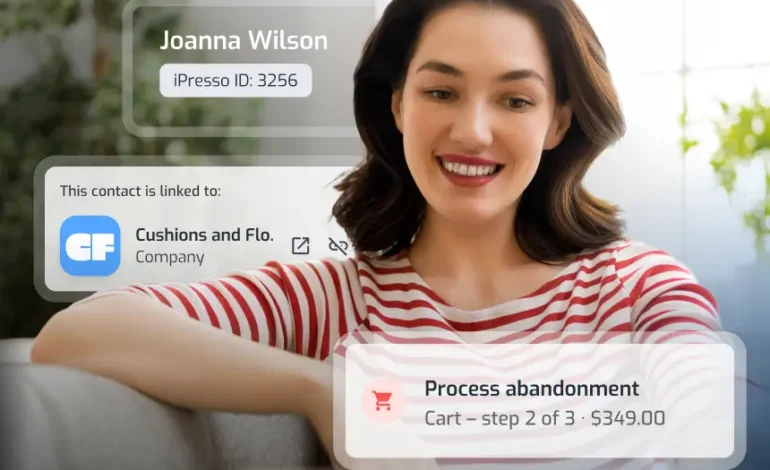
Tuesday, 9:12 a.m. A customer calls because one item is missing from her parcel. The service rep has a few seconds to figure out who is on the line. A regular or a one-time buyer? Does she accept text messages? What did you send her this week?
Since November 2026, iPresso answers those questions on a single screen. The new Contacts Manager is the customer data platform view in iPresso: it brings everything you know about a customer into one place. And you decide how the blocks with that data are arranged.
💡 In short:
- The new Contacts Manager is the customer data platform view in iPresso: all your customer data in one place. Available since November 2026, it has replaced the previous view.
- You build the contact profile from blocks such as business card, channels, consents, scoring, segments, scenarios, notes and communication history.
- You add, drag and remove blocks, then save the layout as a view.
- The contact preview opens next to the list, so you never have to leave it.
- Every team sees what it needs: marketing gets channels and consents, sales gets scoring and notes, customer service gets history and flags.
- Clean data in one place is also the foundation for working with AI agents.
Why a customer 360 view shapes every conversation
A marketing automation platform knows a lot about each customer. What they bought, what they clicked, what they agreed to, which segments they are in, how many scoring points they have. The trouble starts when a person has to use that knowledge. Fast.
A marketer planning a campaign checks whether a contact has SMS consent. A salesperson wants to know if a lead is hot before picking up the phone. Customer service needs the history before saying hello. When each answer lives somewhere else, people stop looking. They start guessing.
A customer 360 view is meant to fix that. One screen showing contact data, behavior, consents and communication history. Sounds simple. In practice one thing matters: does the screen show what you need right now, or simply everything at once?
What is the iPresso Contacts Manager?
Contacts Manager is the iPresso module where all the data about the contacts in your database comes together. It works as a customer data platform: it combines contact details, behavior, consents, channels, scoring, segments and communication history into a single customer profile. It has two parts: a list of all contacts and the profile of a single contact. In the new version, the profile is built from blocks, and you decide which blocks are visible and in what order.
What is new in Contacts Manager?
A contact profile built from blocks
Every piece of contact information gets its own block. Business card in one, scoring in another, notes in a third. You add a new block with the “Add block” button and drag existing ones by their handle to wherever suits you. A block you don’t need disappears with one click.
Each block also has its own settings and refresh button. Want to see whether the score just changed? Refresh that one block instead of the whole page.
Saved views for different jobs
Once a layout works, save it as a view. You switch between views from a dropdown above the profile. One view for checking leads before a call, another for handling complaints. No rearranging everything from scratch.
Contact preview straight from the list
The contact list now has a side panel mode. Click the eye icon next to a contact and their blocks appear beside the list. With a database of thousands of contacts, that adds up. You go through people one by one without opening each profile and coming back.
A contact list you set up your way
Above the list you see the total number of contacts and a search bar with a “Search everywhere” option and filters. You pick the columns. You can select many contacts at once, export the list and set how many rows show per page.
How much customer information fits on one screen?
The new contact profile has more than a dozen blocks. Each one answers a question someone on your team asks every day.
| Block | What it tells you |
| Business card | Who is this and how do I reach them? First name, last name, email, phone, company and iPresso ID. |
| Tags | Which labels have you given this contact? With tag search. |
| Source | How did the contact get into the database, and when was it last changed? |
| Attributes | What custom data do you collect about them? With attribute search. |
| Categories | Which groups do they belong to? Color-coded labels such as “Loyal customers” or “Filed a complaint”. |
| Channels | Where can you message them? Email, SMS, WhatsApp, mobile push and web push. |
| Consents | What have they agreed to, and what is the consent status? |
| Scoring | How engaged are they? Total, behavioral and demographic score. |
| Segments | Which segments are they in, and when was each segment last refreshed? |
| Scenarios | Which automations are they part of, and when did they enter them? |
| Communication | Which campaigns did they get, and when? |
| Notes | What does the team know that isn’t in the data? With author, date and time. |
| Linked contacts | Who are they connected to in the database? |
| Tokens | Do they have push notification tokens? |
You don’t need all of them. A good view usually has five or six blocks picked for a specific task.
What is in it for marketing, sales and customer service?
Marketing: channels, consents and automations in one place
The Channels block shows, for every channel, whether you can reach the contact there. A green check next to email, SMS and WhatsApp. A red mark where you can’t get through, for example push without a token. Next to it, the Consents block with the status of each consent.
The result? Before you add a contact to an omnichannel campaign, you know how to reach them and whether you are allowed to. The Segments and Scenarios blocks show which automations the contact is already in. That makes it easier to explain why someone got three emails in one day. And easier to prevent it next time.
Sales: scoring and notes, so leads arrive with context
Scoring is split into two scores plus their total. The behavioral score grows with what the contact does: opens emails, clicks, comes back to your site. The demographic score reflects who they are, such as industry or job title. A salesperson sees right away whether they are dealing with someone active or someone who fits the profile but hasn’t warmed up yet.
Then there are Notes. Each one has an author, date and time. A marketer leaves a quick “very active, asked for a call” and the lead reaches sales with context. Before it goes cold.
Customer service: history and flags you can spot from across the room
The Communication block lists the campaigns a contact received, with type and send date. In a few seconds, a rep can check whether the customer already got the email about the promotion they are asking about.
Categories are color-coded. “Loyal customers” in green, “Filed a complaint” in red. You see the red flag before you read anything else on the screen. The rep knows it is a sensitive case before the conversation even starts.
Back to that 9:12 call
The rep opens the contact. Categories show “Regular purchases” and “Loyal customers”. Scoring is high. In the Communication block: yesterday she got an email with early access to a promotion. In the notes, a colleague’s entry from last week says she often recommends the shop to friends. Channels: email, SMS and WhatsApp active, consent granted.
The call takes four minutes. The rep apologizes, promises to ship the missing item today and adds a note. That evening, the customer gets the tracking number on WhatsApp.
Nobody searched for anything. Nobody asked colleagues what went out to her this week. The new Contacts Manager lays out the data so a person has time to use it. And in a four-minute call, that is exactly the point.
How to set up your first view: four ready-made layouts
- Sales view: Business card, Scoring, Notes, Communication and Linked contacts. Everything you need before a call.
- Customer service view: Categories, Notes, Communication, Channels and Consents. History and flags right at the top.
- Marketing view: Channels, Consents, Segments, Scenarios and Scoring. Built for campaign planning.
- Database hygiene view: Source, Attributes, Tags and Linked contacts. For checking where contacts come from and whether their data is complete.
Start with one view for the task you do most often. Add more once you see what is missing.
Clean data: getting ready for AI agents
AI agents are only as good as the data they work with. If consents live in one system, purchase history in another and sales notes in someone’s inbox, an agent sees only a slice of the customer. And makes decisions based on that slice.
The new Contacts Manager brings that data together in one profile. That makes iPresso a place where you can connect your own agents and give them the full picture: who the customer is, what they do, what they agreed to and what they have already received from you.
Contacts Manager FAQ
When is the new iPresso Contacts Manager available?
Since November 2026. The new view has replaced the previous one, so every iPresso user now works in the new version.
Can I have several contact profile views?
Yes. You save a block layout as a view and switch between views from the dropdown above the profile.
Where can I check whether a contact has consented to communication?
In the Consents block. It shows the consent name and its status, for example “Granted”. The Channels block also shows which channels the contact can be reached on.
Which communication channels are shown in the contact profile?
Email, SMS, WhatsApp, mobile push and web push. Each channel is marked to show whether you can reach the contact through it.
What is the difference between behavioral and demographic scoring?
Behavioral scoring rates what the contact does, for example email opens, clicks or website visits. Demographic scoring rates who they are, for example their industry or job title. In Contacts Manager you see both scores and their total.
How do I check which campaigns a specific contact received?
In the Communication block. Each campaign is listed with its type, name and send date.
Is Contacts Manager a customer data platform?
Yes. Contacts Manager brings all customer data into one profile: contact details, behavior, consents, channels, scoring, segments and communication history. Your campaigns, scenarios and AI agents all work on that profile.
See the new Contacts Manager live
Screenshots show a lot, but blocks are best rearranged by hand. Fill in a short brief and we will show you the new Contacts Manager in a demo. We will also suggest how to set up a view for your team.
Fill in the brief and see the new Contacts Manager